
Find companies using your competitors’ SaaS
Find SaaS usage hidden from website scanners. Build a competitor prospect list, request live checks and prioritize companies using adoption and spend estimates.
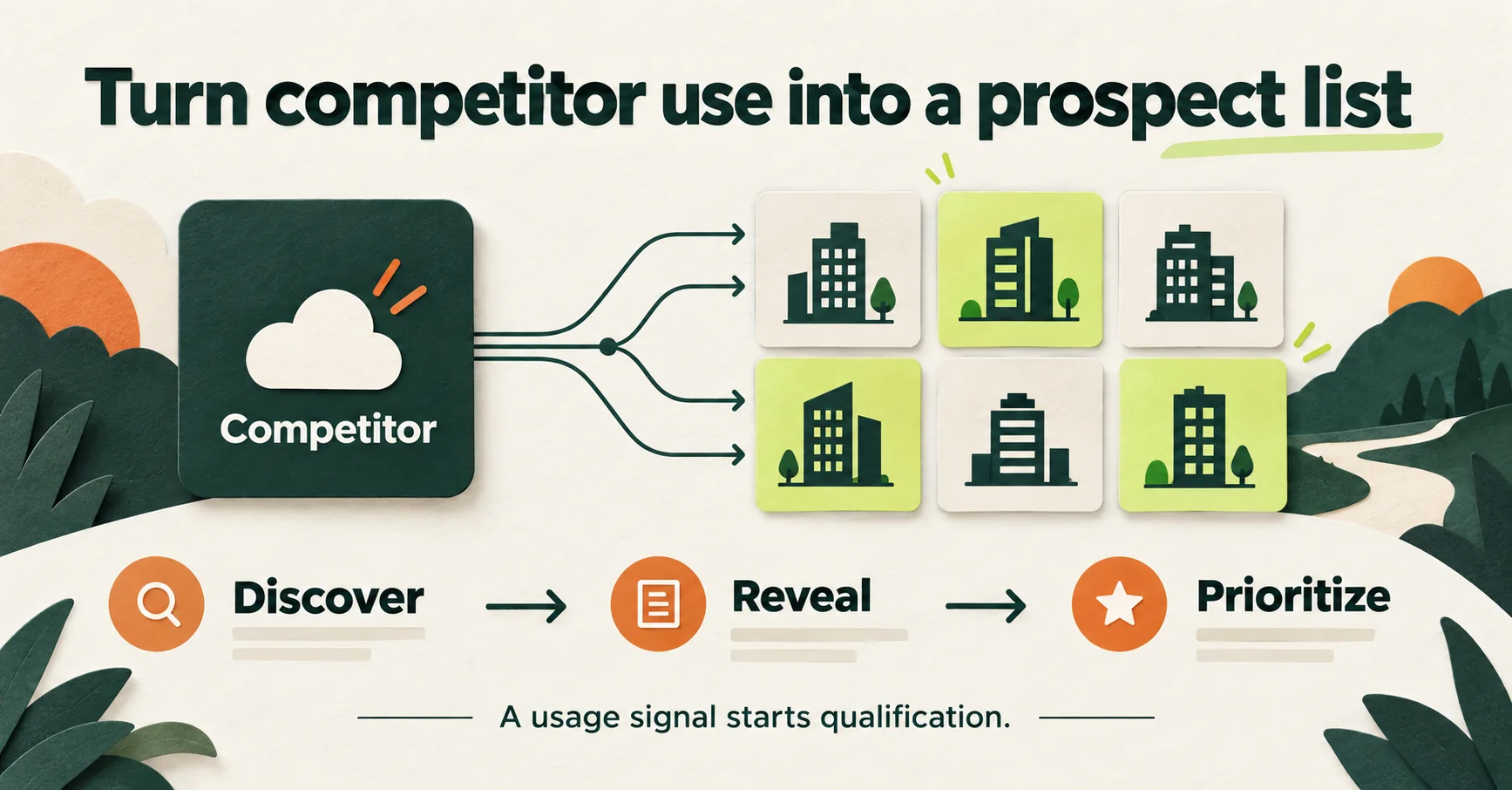
Find companies using your competitors' SaaS, including usage hidden from website scanners. anvendor provides sales intelligence for competitor prospecting: enter a vendor, discover potential accounts and reveal service-use findings. Request live checks on demand and use estimated adoption and annual spend to prioritize prospects. An unrevealed candidate has not been checked yet.
anvendor looks for evidence that this company uses this vendor, then estimates spend from suitable plans and estimated usage. Pricing records distinguish published rates from labeled estimates where a public rate is unavailable. These findings support lead qualification; your sales process establishes whether there is an opportunity.
A useful competitor signal, with a specific meaning
Using a rival service is a concrete signal of category relevance. It gives you a more focused starting point than a list built on industry and company size alone. Estimated spend can help decide which accounts merit research, but it does not verify a budget or contract.
An incumbent also brings reasons to stay: satisfaction, contract commitments and switching costs. Before outreach, establish a credible reason to reconsider it, such as a product gap your offer addresses or a different pricing model. The finding itself does not prove dissatisfaction, purchase intent or readiness to switch.
When analyzing competitors, treat the results as customer examples for account research, not a complete customer database or a market-share estimate. A company missing from the results may still use the service. For market and competitive analysis, combine these findings with other research rather than extrapolating from the sample.
This guide covers the vendor search and bulk reveal workflow in detail. For customer targeting, a manual scoring worksheet and outreach steps, follow the guide to finding customers with anvendor.
The quick version
- Open the leads search on your account and type your competitor — a name or a domain.
- Discover. Discovering companies is free and unlimited on every plan, including Free.
- Read the table: one row per company, with headcount, how far the tool has spread inside it, and estimated annual spend on it.
- Add a location, industry or size filter to discover more matching companies, and Reveal the ones you care about — 1 credit each, refunded if we find nothing. A positive finding is an input to qualification, not a fully qualified sales opportunity.
- Export to CSV, Excel or PDF and work the list.
SaaS usage beyond the website, checked on demand
anvendor can identify evidence that a company uses a SaaS or business service even when that usage leaves no detectable trace on its public website. You can also request a new live check when you need to revisit a finding.
Use these findings to build and prioritize your prospect list:
- Find SaaS usage beyond website visibility. Internal CRM, HR, ticketing, design and document tools can be used without leaving a detectable trace on the company's public website. Coverage varies by service and company.
- Request a live check. Recent scan results may be reused. Choose Refresh to run a new paid live scan, then review the result's observation date. Empty or failed checks return their credits.
- Prioritize by estimated adoption. Estimated adoption helps distinguish a tool used by one team from a company-wide rollout. Those are entirely different conversations.
- You get a sourced spend estimate. Suitable vendor plans, estimated usage and clearly labeled estimated rates where necessary help size the opportunity. Pricing carries a source URL and check date; it does not reveal the company's actual invoice.
Step by step
Step 1 — Open the leads search
Sign in and open Search leads on your account. The home page carries the same tab as a public demo, but it is limited to a set of featured services and has no filters; the account version searches the whole catalogue. A Free account is enough to follow every step here.
Step 2 — Type your competitor
A product name or a domain both work — GitHub or github.com. The field is a typeahead over hundreds of tracked services and ranks exact matches first, so the vendor you mean is usually the first row. One detail worth knowing: picking a suggestion fills the box and stops there. It does not search. The filters sit directly underneath and are part of the same question, so searching on the pick would fire against whatever they happened to hold. On the keyboard that means two presses of Enter — the first fills from the highlighted row, the second searches.
Step 3 — Discover companies, which is free
Discovering companies is unlimited and costs nothing on every plan. Credits pay for answers about a particular company, never for the query, so you can try five spellings of a vendor's name and three different competitors before you spend anything. Run the searches first; decide what to reveal afterwards.
Step 4 — Read the table
One row per company. The header above it names the service and shows how many companies are listed. If you would rather see the shape of a result before signing up, the per-service pages show customer examples for eligible services alongside available plan pricing, with estimated rates clearly labeled.
- Company — name, domain and location. The name links out to the company's site.
- Size — headcount, where we have it.
- Adoption — an estimate of how widely the service is used inside the company, expressed as a percentage. Confirm the deployment scope with the prospect.
- Est. spend — estimated annual spend on that one service, shown as a rounded range such as "$12k – $48k / yr". A + keeps a custom-priced upper end open.
Every column sorts. Results page at 100 rows, and rows you have already paid for sort to the top of the list rather than scattering among rows you cannot read yet.
Step 5 — Focus the list with filters
Location, industry and company size sit under the input. Use them to discover companies that match your territory and customer profile — for example, SaaS companies in United States with 51 to 200 staff. Reveal the companies you care about to check their use of the service and see estimated spend.
Location takes a country and, if you want one, a city; you can add several. Setting a filter back to its default removes that restriction — nothing is sticky, and nothing runs until you click Discover.
Step 6 — Reveal the companies you care about
To work from your own list, paste up to 10,000 company names or domains into the optional Companies field, separated by lines, commas or semicolons. It expands while you edit. Names are resolved to domains, and only that list is included; location, industry and size filters are ignored. You can reveal available rows during lookup. Reveal all becomes available when lookup finishes or stops with partial results and uses the resolved list shown when you confirm.
Previously detected companies appear ahead of candidates not yet checked, even when the detection is old or a newer scan found no match. Check the previous detection date and latest result: historical evidence does not guarantee current use.
A company you have not revealed shows hidden adoption and spend, with a Reveal button. Revealing costs 1 credit, the same as a full company analysis. Reveal can reuse a fresh result from a scan less than 30 days old; access still costs credits if you have not unlocked it. When a new scan is needed, it runs in the background and usually takes minutes. A full company live scan can take an hour or more for a large company. Choose Refresh to start a new live scan now at the displayed credit price, even when an earlier result is fresh.
- Reveal selected takes the rows you tick on the page you are looking at, up to a hundred at a time.
- Reveal all takes the whole list instead — every company the search can reach, including the pages you have not scrolled to, up to 10,000. anvendor quotes the price first, then works through it in the background: you can close the tab, and its frame shows how many have been processed, how many were detected, and what has been charged so far. Every reveal — one company, the selected page, or the whole list — gets its own frame; several can run at once, and an identical Reveal all is not started twice while it is running.
- Bulk reveals show a confirmation. It quotes the total before anything is spent, because revealing a full page of 100 companies costs 100 credits and a control that spends that on a mis-click would be a trap however clearly it is labelled. Reveal all prices the list the same way, then holds that price or your whole balance, whichever is smaller — a hold, not a charge, and the reason a balance too small for the whole list shortens the run rather than blocking it. Each company draws 1 credit as it is checked; a company checked without a detection hands 1 credit straight back to the run and the next company on the list spends it, so a run routinely reaches further than the balance it started with. Whatever the job never reaches is released when it ends.
- Not found means not charged. If we look and there is no evidence of that subscription, the credits are refunded automatically and the progress frame reports the outcome. Companies with previous detections remain in the list; companies with no previous detection leave it. A negative check from the last 30 days is reused free.
Step 7 — Open the service card
The service name above the results opens a card with its category, its website, and its available plan pricing, with estimated rates clearly labeled. Check the pricing source and date before using an estimate to prepare a sales conversation.
Step 8 — Export
Every search is saved to your account's history, and exports to CSV, Excel or PDF. That is how the list gets into your CRM or your sequencer instead of staying in a browser tab. The history filters the same way the search does — narrow a service's past results by company size or by estimated spend band before you export, so a rep gets their segment rather than the whole run.
If we do not cover that service yet
Your search is recorded as a request and prioritized — an unknown vendor that people keep searching for is exactly how coverage grows. In the meantime you get one of two things, depending on which kind of miss it was: a spelling suggestion when the query looks like a typo, or a short list of other tools in the same category that do carry companies when the vendor is real but the list is empty.
What it costs
- Discovering companies: free and unlimited on every plan.
- Reveal one company on one service: 1 credit, refunded if nothing is found. Reveal selected and Reveal all cost the same per company — 1 credit each, quoted as a total before you confirm.
- Analyze a whole company: 1 credit — the services anvendor finds, ranked by available estimated annual spend.
- Free plan: $0, with 20 credits per 30 days, unlimited company discovery and full history. Use the credits for up to 20 detected leads or 20 full company analyses, or a mix.
- Subscriptions: Starter is 100 credits for $99 a month, Growth is 400 for $299, and Scale is 1,500 for $999.
- Credit packs: Small is 100 credits for $99, Medium is 400 for $299, and Large is 1,500 for $999. They never expire.
Working the list once you have it
- Use adoption to prepare questions. A lower estimate may suggest a narrower deployment, while a higher one may suggest broader use. Confirm the actual scope with the company; the estimate does not establish a pilot, a standard or a renewal date.
- Sort by estimated spend to prioritize research. Check the range against your target deal size, then validate the opportunity with the prospect.
- Run it in the other direction on your best accounts. Enter the company itself instead of the service to see other subscriptions anvendor finds. Use the context to prepare questions about integrations, existing workflows and budget.
- Filter into territories, then export per segment — one file per rep beats one file with a country column.
- Lead with a relevant reason to reconsider. Existing service use gives you category context. Explain the specific problem your offer could solve, then check whether that problem exists for the company.
What the list will not tell you
- It is not a contact list. You get companies, adoption and spend. Names and email addresses are a different tool's job.
- It is not an invoice. Spend combines estimated usage with published prices or labeled estimated rates. The displayed range is an estimate, not a guaranteed invoice range. Actual contracts can differ.
- It is not a renewal date. The result does not establish when a contract expires or whether the company plans to switch vendors.
- It is not exhaustive. Absence of evidence is not evidence of absence. We report only the subscriptions for which we find evidence, so a service missing from a result means no evidence found, not not used.
- It is not frozen. Data ages. Review the result date and use Refresh to request a new live scan. Previously detected companies can remain in discovery after a newer negative check; historical evidence does not guarantee current use, and a negative check does not prove non-use.
Frequently asked questions
How do I find companies that use a specific SaaS service?
Open Search leads in your account, enter the service by name or domain, and click Discover. Discovering companies is free on every plan. Reveal a candidate to check service use and see available adoption and spend estimates; an unrevealed candidate has not been checked yet.
Does discovering companies cost credits?
No. Discovering companies is unlimited and free on every plan, including Free. One credit reveals a company's service-use finding and available estimates; one credit analyzes a company for the subscriptions anvendor can find. Discovery queries do not spend credits.
What does Reveal actually show me?
Adoption and estimated annual spend for one company on one service. A detected match costs 1 credit. Reveal selected takes up to 100 rows on the current page; Reveal all processes the available list, up to 10,000 companies, in the background. Bulk actions quote the price first. Failed checks and checks that find no subscription are refunded.
Why are some companies in the list greyed out?
Their adoption and spend are hidden until you reveal them. Results you have already revealed remain readable. Choose Refresh to start a new live scan now at the displayed credit price.
Can I filter by country, industry or company size?
Yes, in the same search box. Set a location, an industry or a headcount range to discover companies that match your territory and customer profile. Discovering companies is free; Reveal shows a company's use of the service and estimated spend.
What if anvendor does not track my competitor yet?
The search is recorded as a request. Check the spelling and any suggested match. If a tracked service has no companies for your filters, try widening them or return later as coverage grows.
How do you estimate what a company pays?
We combine estimated usage with suitable vendor plans, using published prices and labeled estimated rates where a public rate is unavailable. Pricing carries a source URL and check date. A range such as '$12k – $48k / yr' shows anvendor's estimated annual spend. A + on the upper end means custom pricing may go higher; actual contracts can differ.
How current is the data?
Results carry their observation date. Results less than 30 days old are fresh and may be reused; paid access still applies where required. Choose Refresh to start a new live scan at the displayed credit price. Previously detected companies can remain in discovery after a newer negative check. Historical evidence does not guarantee current use, and a negative check does not prove non-use.
What do the results tell me?
Results identify evidence that a company uses a given service, with estimated adoption and annual spend. Use them to prioritize company research and validate opportunities. A missing service means no evidence found, not proof of non-use. Your use of the results is subject to the marketing and privacy rules of your jurisdiction.
Can I export the results?
Yes. Every search is saved to your account history and exports to CSV, Excel or PDF.
Is there an API or MCP server?
Yes. The anvendor API and its MCP server let your own code and AI assistants analyze companies, scan a service across a list of companies and discover companies. Create API keys in your account, or connect an assistant such as claude.ai or ChatGPT by signing in and approving it, with no key to copy. Both spend the same credits at the same prices as the app, within the methods and credit budget you set. See the API and MCP documentation at anvendor.com/docs/api.
Start with one search
Pick a competitor you regularly encounter, search for it, then shortlist companies that fit your customer profile. Reveal a small sample and verify the findings before expanding. Judge the workflow by cost per verified account that fits your criteria, then by qualified meetings and pipeline compared with your usual targeting.
Weighing this against a website scanner, a job-ad tool or a modelled provider? Those comparisons are written up separately — what each one observes, where each goes quiet, and which to reach for when.
Suggest a correction · Sources and estimate limitations
Leads already using your competitor
Discover companies using SaaS and business services, with estimated adoption and annual spend to help qualify each opportunity. Free to start.
Get started free