
How to find customers with anvendor: a step-by-step guide
Build a SaaS prospect list from company-service findings. Discover accounts, request live checks, and prioritize by estimated adoption and spend before outreach.
To find potential customers with anvendor, choose a service relevant to your offer, discover companies, filter for your ideal customer profile, and reveal the accounts worth researching. Use SaaS usage findings beyond website visibility, live checks on demand and estimated spend to prepare a sales conversation.
This guide is for teams selling SaaS or business services to other businesses. It follows the whole path from B2B lead generation to a qualified shortlist. Finding a company is the start: becoming a customer still requires a need, a buyer and a sales conversation.
Step 1 — Decide which customers you want to find
Write down your target industry, territory and company size before opening a search. Add the problem your service solves and a minimum opportunity size that makes outreach worthwhile. These are your lead qualification criteria, not facts anvendor can decide for you.
For example, a team selling a collaboration service might investigate software companies in the United States with 51–200 employees that use Slack. This is an illustrative search, not a claim that those companies want to replace Slack. If you want to find clients for consulting or implementation services, an existing subscription may instead be a reason to offer help with that vendor.
Step 2 — Create an account and open Search leads
Open Get started, create your account and confirm your email if you register with email and password. Existing users can sign in. In your account, select Search leads.
Discovering companies is free on every plan. The Free plan includes 20 credits per 30 days for paid checks. Before using credits, review the current plans and credit prices. You can also browse public vendor customer examples to explore coverage before signing up.
Step 3 — Use competitor analysis to choose a service
Enter a competing or complementary vendor's name or domain in the service field. Select the matching suggestion, check the product identity, and set Locations, Industry and Company size. Click Discover. Selecting a suggestion fills the field; it does not run the search.
This is one practical use of competitive intelligence and analysis: researching a vendor's customer base to identify accounts relevant to your offer. A service is required; location or company size alone does not define this search. If the list is empty, check the service name and widen one filter at a time. An empty result is not proof that no companies use it.
Lead generation, often shortened to lead gen, gives you candidate companies. An unrevealed discovery candidate has not yet been checked for the selected service. Verify that finding before building your pitch around it.
Step 4 — Reveal candidates and qualify the findings
Start with a small group that fits your customer profile. Click Reveal on a company to check its relationship with the selected service and see available adoption and annual spend estimates. A detected lead costs 1 credit. Failed checks and checks that find no subscription are refunded.
Reveal can reuse a fresh result when available; it does not always start a new scan. When a new scan is needed, follow its progress in the account. Check the result date, company domain and available adoption estimate before outreach. Validate the actual deployment scope with the prospect. Adoption and spend are estimates, and a subscription finding does not establish dissatisfaction or a renewal date.
Once the search is useful, Reveal selected handles up to 100 checked rows on the current page. Reveal all processes the available list, up to 10,000 companies, in the background. Read the confirmation and credit estimate first; your balance can limit how many companies the run reaches. The detailed competitor customer-list guide covers bulk reveals and result handling.
Step 5 — Research a company's vendors
For an account worth a closer look, select Companies in the sidebar. Enter its company domain and click Analyze. This reverses the lookup: instead of asking which companies use one vendor, you investigate the services found for one company. Starting a new full company analysis costs 1 credit; a full scan can take an hour or more for a large company, so return to its history when the result is ready.
Researching a company's vendors can reveal a competing service or tools your offer works alongside. Use the estimated adoption and spend to prepare questions about deployment and scope. anvendor reports services for which it finds evidence; an absent vendor means no evidence found, not proof of non-use. Check the explanation of findings, sources and estimate limits before drawing conclusions.
Step 6 — Apply a simple lead scoring rule
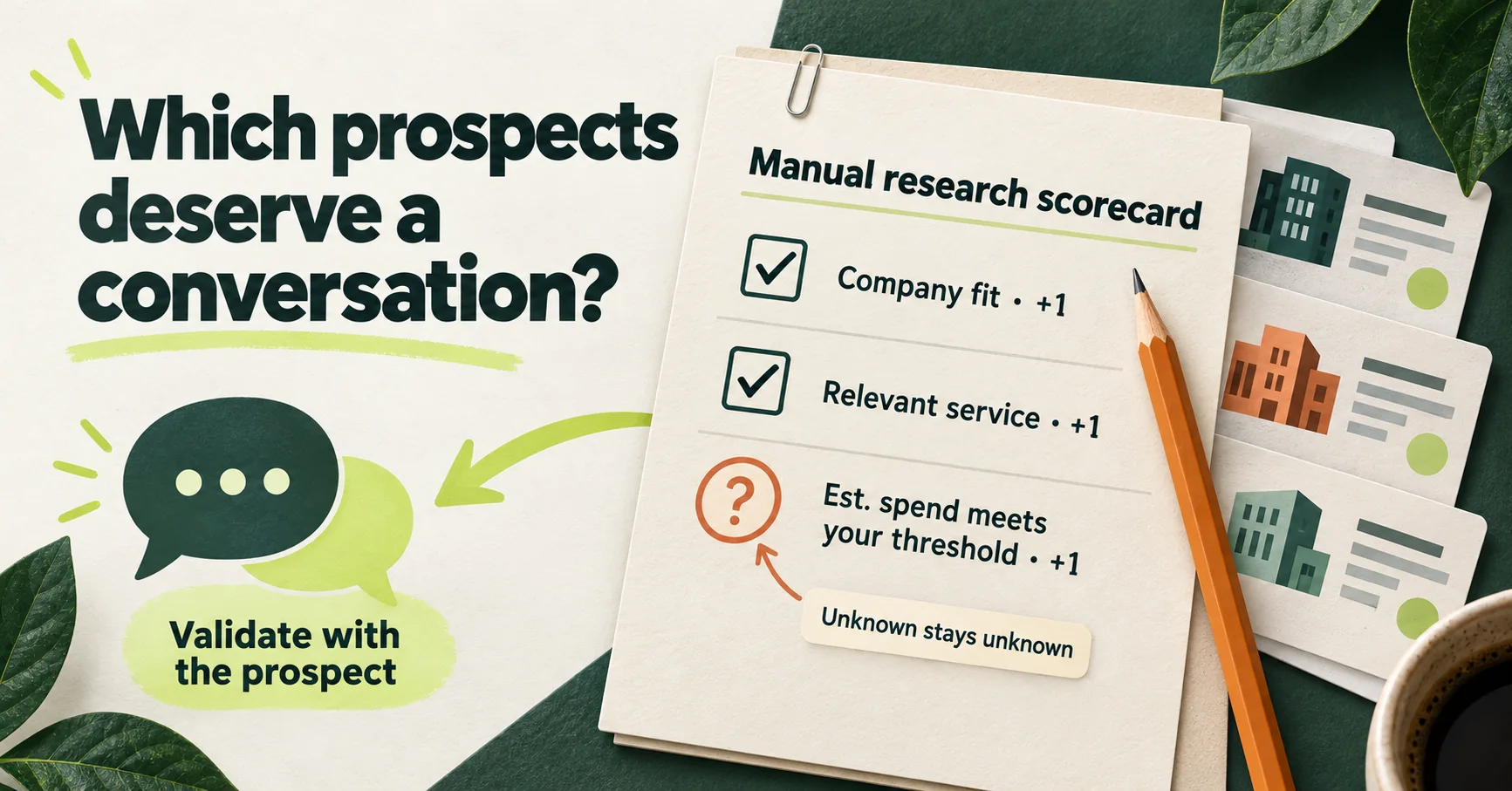
Lead scoring helps decide which qualified accounts to research first. Here is a simple manual worksheet you can use in your CRM or spreadsheet. anvendor supplies the company findings and estimates; it does not calculate this score or a probability of closing a sale.
| Check | Give one point when |
|---|---|
| Company fit | Industry, location and headcount match your customer profile. |
| Relevant service | A revealed finding identifies use of the competing or complementary service you selected. |
| Opportunity size | Available estimated spend meets your own threshold for further research. |
Mark missing or uncertain inputs unknown and leave the score incomplete. Do not turn an unrevealed row or missing estimate into a negative finding. A complete 3-point account is a research priority under this example rule, not a guaranteed buyer. Validate estimated spend with the prospect and adjust the rule when you learn which accounts actually qualify. Your CRM handles the scoring and sales stages.
Step 7 — Put the shortlist into your sales process
Below the search form, open History of leads or History of analysis and expand the relevant service or company. Under Export this service or Export this company, choose CSV, Excel or PDF. Use CSV or Excel to move the shortlist into a compatible CRM or working spreadsheet; PDF is useful for review. Company results are not a contact list, so identify the appropriate buyer through your normal prospect research.
Record the company domain, relevant service, observation date, estimated spend, your manual score and the next action. In your sales process, keep needs research, qualified for outreach and conversation started separate. A qualified company is still not a sales opportunity until you establish a problem worth solving and someone willing to discuss it.
Prepare an offer-specific question such as: "How does your team handle collaboration across departments, and where does the current setup slow you down?" Use the subscription finding to make the question relevant; leave exact invoices, satisfaction, purchasing authority and timing for the conversation.
Step 8 — Refresh the evidence and learn from outcomes
Review the result date before a new outreach cycle. Results less than 30 days old are treated as fresh and may be reused, but age alone does not guarantee unchanged usage. Choose Refresh on a company result to request a new live scan at the displayed credit price.
In your CRM, record which researched accounts become conversations, qualified opportunities and customers. Use those outcomes to refine your filters, offer and scoring rule. The useful measure is how many relevant conversations your lead qualification process produces, not just how many companies a search returns.
Frequently asked questions
How can I find customers with anvendor?
Open Search leads, choose a relevant service, set location, industry and company-size filters, then click Discover. Reveal suitable candidates to check service use and available estimates. Qualify those findings before outreach; a search result is a potential customer, not a confirmed buyer.
Can I find clients for a service business?
If your service helps businesses using a particular SaaS or business service, search for that vendor and investigate matching companies. Existing use can make implementation, consulting or integration help relevant, but it does not establish a need or purchasing intent.
How do I research a company's vendors?
Open Analyze company and search by company name or domain. The result shows services anvendor finds, with available adoption and annual spend estimates. It is not an exhaustive vendor or procurement register; missing evidence does not prove non-use.
How can I use these findings for lead scoring?
Combine company fit, relevant service-use findings and estimated opportunity size in your own CRM or spreadsheet. The guide gives a manual three-point example. anvendor provides inputs, not an automatic lead score or conversion probability; leave unknown inputs unresolved.
How does this support competitive intelligence and analysis?
Vendor customer research helps you identify accounts using a competing or complementary service and investigate their subscription context. Use it as an input to competitor analysis. Findings and estimates do not reveal satisfaction, contract terms or plans to switch.
What is the difference between lead generation and lead qualification?
Lead generation identifies potential accounts. Lead qualification checks whether the company, need and opportunity fit your offer. anvendor helps discover companies and investigate subscription evidence; your sales conversation establishes buyer authority, need and timing.
Suggest a correction · Sources and estimate limitations
Leads already using your competitor
Discover companies using SaaS and business services, with estimated adoption and annual spend to help qualify each opportunity. Free to start.
Get started free