
Prioritize leads by SaaS use with anVendor and Zapier
Use the services a company uses to prioritize sales research. Connect anVendor through OAuth and build a simple, explainable lead score in Zapier.
You have a list of leads, but limited time to research them. Which ones should you look at first?
The services a company uses can help you decide. If you sell a Slack add-on, a company using Slack is relevant. If you sell a replacement product, finding the incumbent gives you a starting point for discovery.
anVendor supplies the company research. Zapier applies the scoring rules your team chooses and saves the result.
The workflow: click Check company, let anVendor research it, and have Zapier add a score and explanation to your lead table.
This example uses Slack, a Zapier Table and a button to start the research. It is one way to build the workflow. You can choose another SaaS or business service that anVendor tracks and connect the results to your existing lead sources and CRM.
1. Pick three simple scoring rules
Imagine you sell a Slack add-on for companies with 51–500 employees. Give a lead one point for each of these signals:
| Your rule | Points |
|---|---|
| Slack appears in the company analysis | 1 |
| The company has 51–500 employees | 1 |
| Estimated Slack adoption is at least 20% | 1 |
Adoption is an estimate of how widely the service is used at the company.
A fictional company with Slack, 200 employees and 30% estimated adoption would score 3 / 3. That means it meets all three research criteria. It gives your rep a clear reason to look closer.
These are example rules. Choose thresholds that fit your product, then check whether they help your team find better opportunities. The score comes from your rules; anVendor does not decide who is ready to buy.
2. Connect anVendor with OAuth
You need an anVendor account with credits and a Zapier account that supports the multi-step workflow.
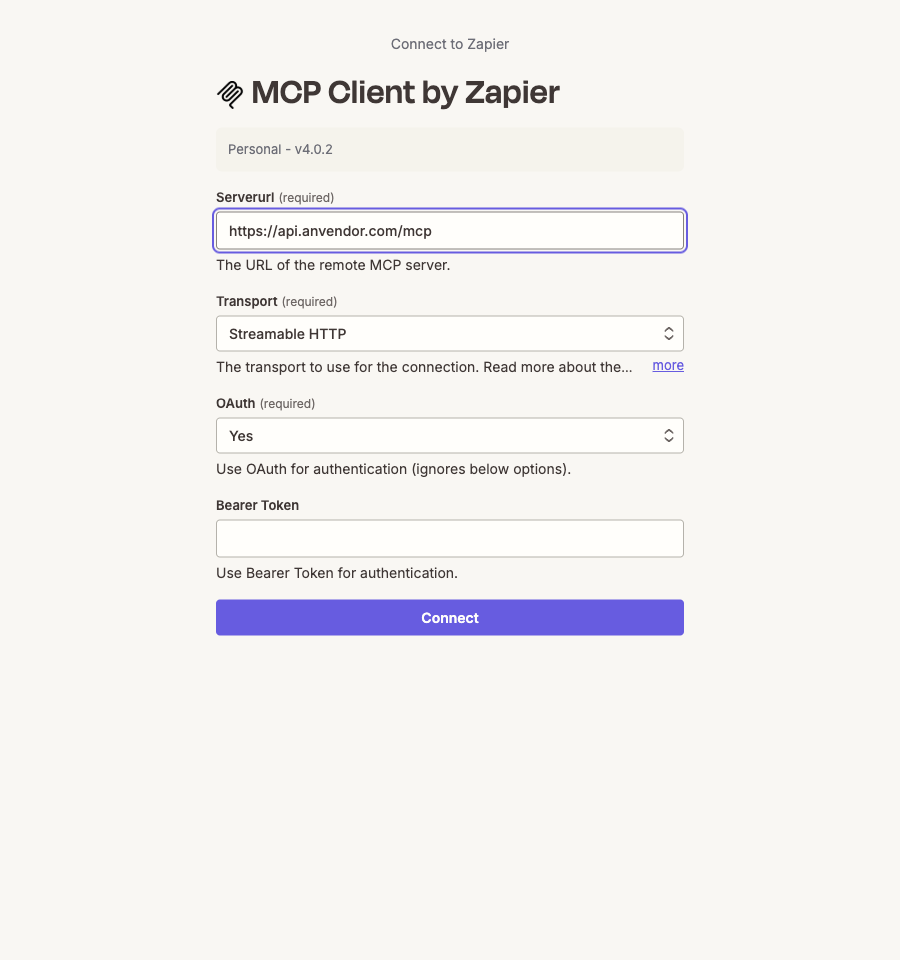
In Zapier, open App connections → Create connection and choose MCP Client by Zapier:
| Setting | What to enter |
|---|---|
| Server URL | https://api.anvendor.com/mcp |
| Transport | Streamable HTTP |
| OAuth | Yes |
| Bearer Token | Leave empty |
Click Connect, sign in and allow Analyze companies. OAuth handles the connection through sign-in, so there is no bearer token to copy. Zapier connection guide.
Set a small spending limit while testing, such as 3 credits in total. This limits spending from credits already in your account.
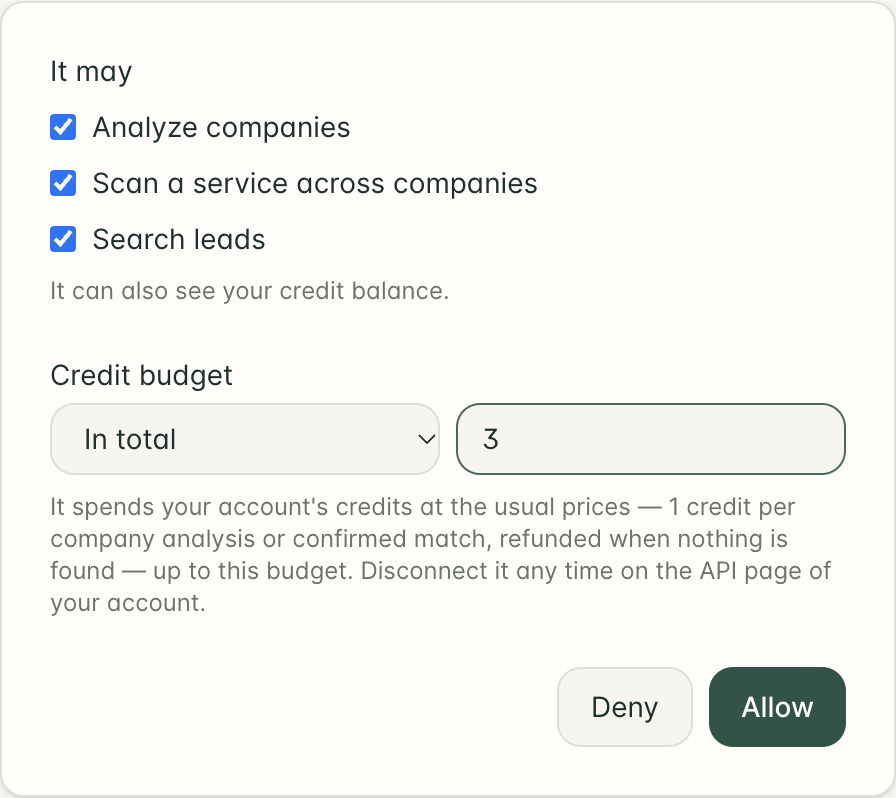
A new company analysis costs 1 credit. It is refunded if the analysis fails or finds no subscriptions. If other services are found but your chosen SaaS is missing, the analysis can still cost a credit. An already purchased fresh analysis can be read again without another charge. anVendor credit rules.
3. Add the lead to a table
Create a Zapier Table called SaaS qualification. A Zapier Table works like a spreadsheet inside Zapier.
Your sales team will use the company website, the service you want to check, a score, an explanation and a Check company button. The table also saves a reference number so Zapier can collect each result later.
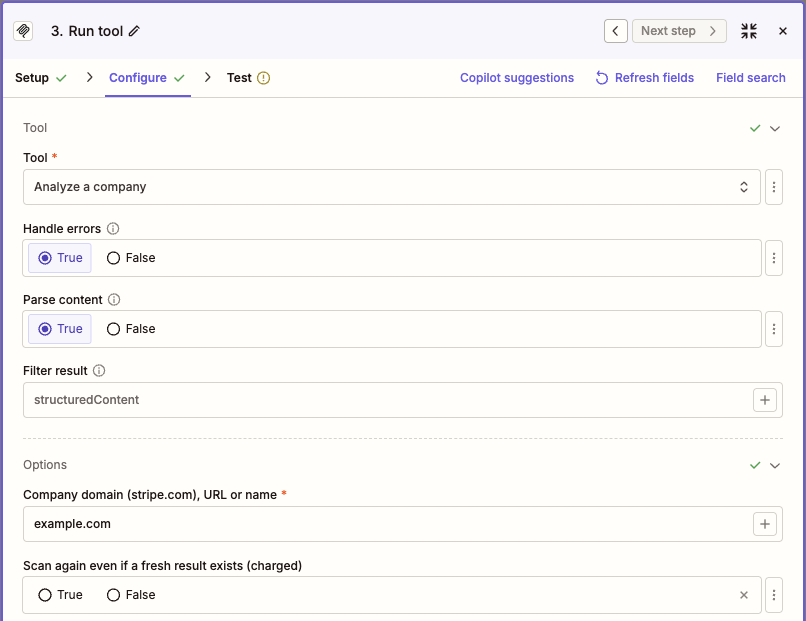
Enter just the company domain, such as example.com, and the service domain, such as slack.com. Leave out https://, www. and page links. Keep these values unchanged until the result arrives.
The full setup guide includes the exact fields and a ready-to-paste scoring script for the person building your Zaps.
4. Let Zapier research and score the company
The setup uses two Zaps:
- Start the research. Clicking Check company runs Analyze a company and saves its reference number.
- Collect the result. A second Zap checks unfinished analyses each hour. When a usable result arrives, it calculates the score and updates the same row.
An analysis may take five to ten minutes, or longer for a large company. A pending result stays on the list for another check. Wait for that result instead of starting the same analysis again.
5. Read the explanation before acting
Use the score alongside its explanation and the date of the research:
| What you see | What to do |
|---|---|
| 3 / 3 | Research first: all three example criteria are present |
| 1 / 3 or 2 / 3 | Review which criteria fit before prioritizing |
| Incomplete | Gather the missing company-size or adoption information |
| Needs review | Check the explanation; the service may be missing or the research may need updating |
| Pending | Let the existing analysis finish |
A missing finding does not prove that the company does not use the service. Old or incomplete research should not become a confident score.
Test the workflow with one lead before adding more. Once it works for your team, you can copy the score and explanation into your CRM.
Use the result to prepare a better question: “How does your team use Slack today, and where does the workflow slow down?” The score helps you choose where to spend research time. Your conversation establishes the need, buyer and timing.
Combine scoring with the tools you already use
The same research can support other workflows:
- Qualify inbound leads: a new form submission → anVendor company research → your score and notes in the CRM.
- Review existing accounts: a CRM account list → anVendor → a research task for the account owner when your criteria are met.
- Prioritize enriched contacts: a contact list from Hunter, Apollo or your favorite sales tool → anVendor company research → a prioritized prospecting list.
Choose the combination that fits where your leads come from and where your reps work. Keep the company-level score attached to the correct account, with its explanation and research date. When adapting the example, keep the saved analysis reference so unfinished research can be collected later.
Suggest a correction · Sources and estimate limitations
Leads already using your competitor
Discover companies using SaaS and business services, with estimated adoption and annual spend to help qualify each opportunity. Free to start.
Get started free