
This optional guide contains the detailed setup behind the three sales articles. Use it when configuring the Zaps, mapping fields, or checking how a workflow handles incomplete results. The main articles explain what the workflows help your sales team do.
These are example implementations. You can keep the competitor company list as a standalone result, add contact/email enrichment through Hunter, Apollo or another sales tool, or adapt the scoring and pricing outputs to your CRM and proposal process. Those extensions need their own field mappings and provider setup; the instructions below cover the spreadsheet and Zapier Tables examples. Preserve the saved analysis reference and result-collection step when changing an analysis workflow.
Published September 24, 2026.
Competitor list setup
Build a competitor customer list in Zapier with anVendor
A competitor's customer can be a relevant prospect: the company already has a use case in your category. anVendor helps you identify that relationship. Zapier can put the findings into the spreadsheet your team already uses.
This walkthrough builds a daily list of companies with recent evidence of using a selected SaaS or business service. The example uses Slack, across company sizes. Replace the service with a tracked competitor in your market. A finding supports account research; your sales conversation establishes whether there is an opportunity to switch.
The workflow is Schedule → anVendor discovery → select recent findings → loop over companies → find or create a spreadsheet row → update it. It maintains the first returned page automatically. A later section explains how to collect additional pages without confusing candidates with confirmed findings.
What you need
Use an anVendor account, a Google spreadsheet, and a Zapier plan or trial that supports this multi-step workflow, Code and Looping. Company discovery and reading your balance do not spend anVendor credits. Zapier has its own plan limits and task accounting.
Create a worksheet named Competitor accounts with these columns:
| Column | Purpose |
|---|---|
| Pair key | Service domain plus company domain; the lookup key |
| Company | Display name |
| Company domain | The company being researched |
| Service | Canonical service domain |
| Location | Available location text |
| Finding | The original anVendor match classification |
| Last detected | Observation date |
| Last checked | Latest recorded check date |
| Figures locked | Whether paid figures are still hidden |
| Exported at | When this workflow last wrote the row |
These rows contain company intelligence, not contact details. A retained row is a dated finding; a company disappearing from a later page does not establish that it stopped using the service.
Connect anVendor with OAuth
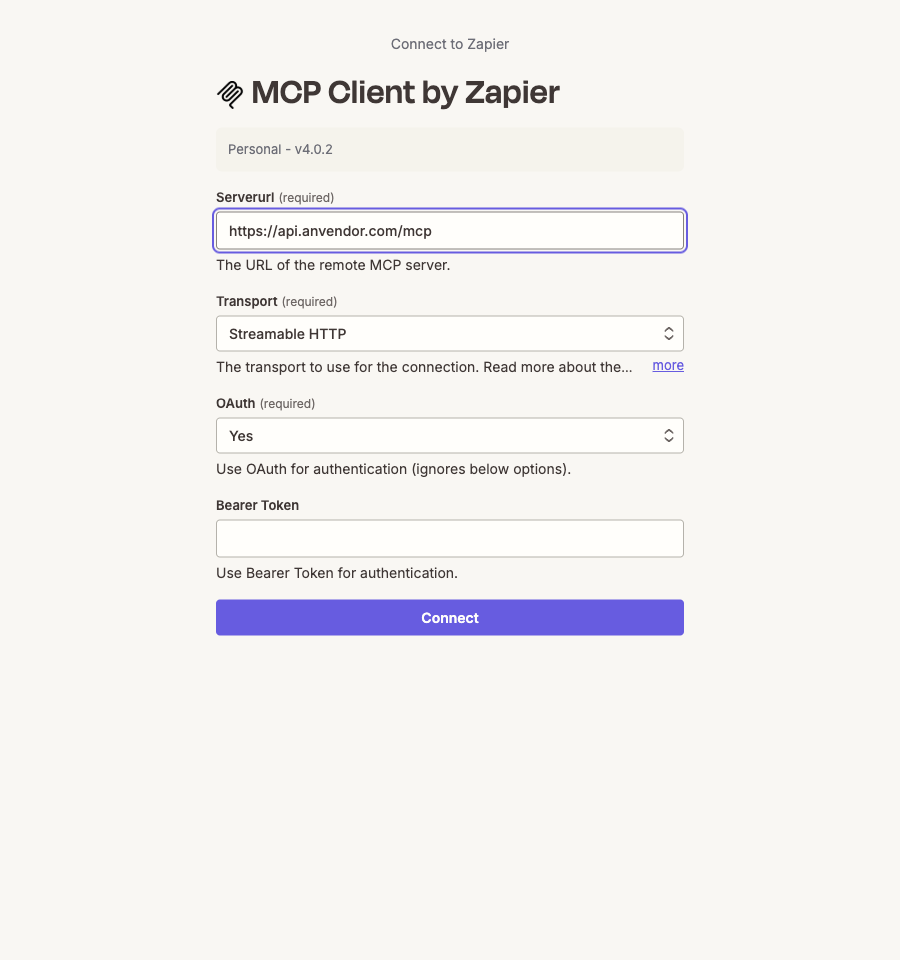
In Zapier's App connections, click Create connection and search for MCP Client by Zapier. Use the following connection settings, then click Connect and sign in to anVendor:
| Setting | Value |
|---|---|
| Server URL | https://api.anvendor.com/mcp |
| Transport | Streamable HTTP |
| OAuth | Yes |
| Bearer Token | Leave empty |
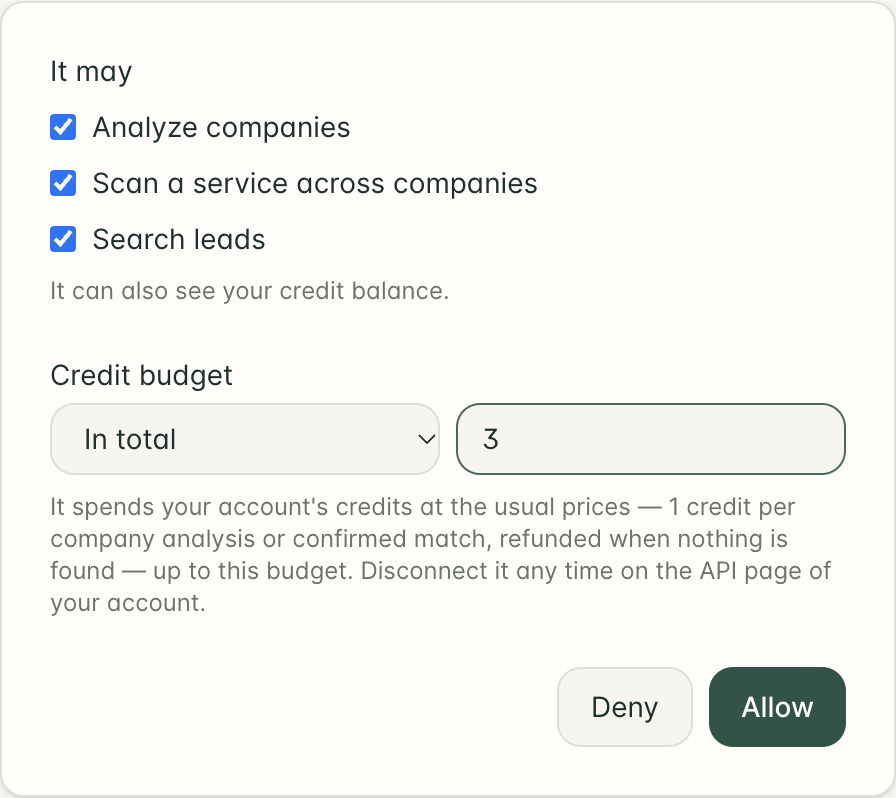
Allow Search leads on the consent screen. Set a budget you are comfortable with; the budget caps existing credits rather than adding credits. Zapier handles the token exchange. Zapier's MCP Client connection instructions describe the connection fields.
In a temporary MCP Client → Run tool action, choose Credit balance (get_balance). Set Handle errors and Parse content to True, leave Filter result empty, and test. Check the connection name, methods and budget under apiKey in the output. That field name is also used for OAuth connections. Reuse this connection throughout the Zap. The anVendor API page lists it under Connected apps.
1. Ask anVendor for companies
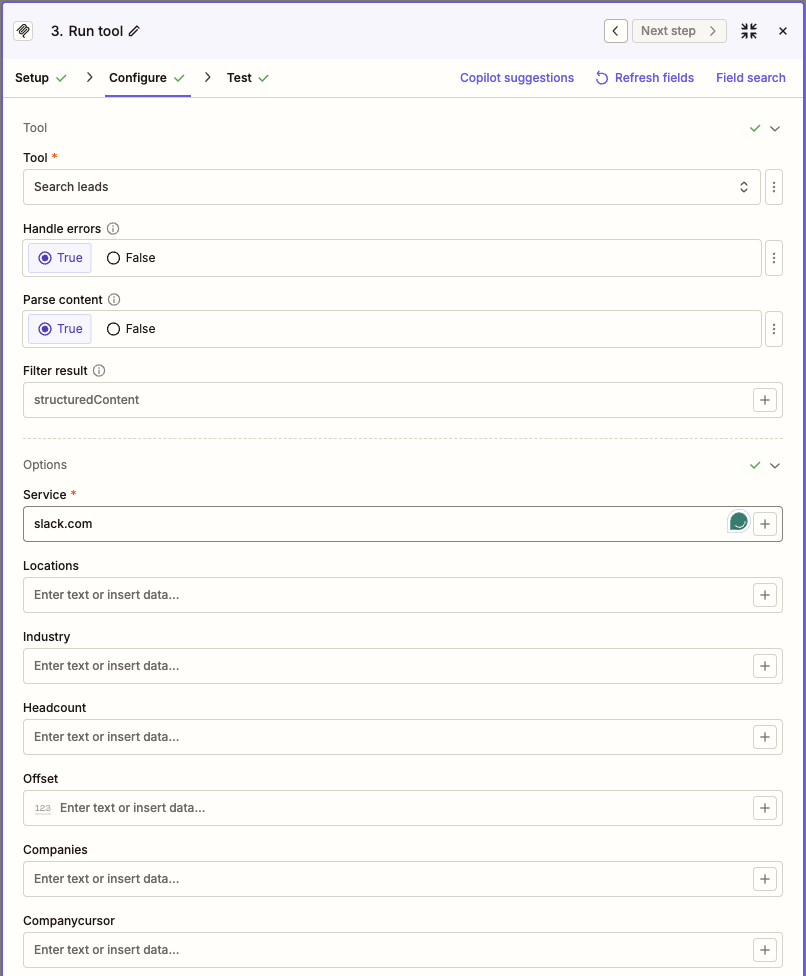
Create a Zap with Schedule by Zapier → Every Day, and choose a suitable run time. Add MCP Client → Run tool, select your OAuth connection, and choose search_leads.
In the Service field, enter slack.com. Leave the optional filter fields blank. The request is:
{
  "service": "slack.com"
}
The JSON describes the request; enter the service domain into its own Zapier field. Keep Handle errors and Parse content set to True and Filter result empty. Test the action and inspect Data out.
This recipe uses one text input deliberately. In our MCP Client 4.0.2 tests, typing a JSON array into Headcount, or mapping a native list into it, still reached the MCP server as text and failed validation. Leave Headcount, Locations and Companies blank for this workflow. Parse content applies to the response; it does not convert those request inputs into arrays.
The response contains service, serviceUnknown, companies, and next. For a recognized service, serviceUnknown is false. The first page can include recent findings, historical findings and candidates; the next step selects the evidence appropriate for this list.
2. Keep the evidence you want on the list
Discovery includes several types of company. Keep those distinctions when exporting:
| Match | Meaning |
|---|---|
detected | A recent finding of service use |
previously_detected | An older finding, useful for further research |
unconfirmed | A candidate that has not been confirmed |
purchased | Your anVendor account has unlocked the figures; this does not describe the company's payment to the vendor or guarantee freshness |
For this tutorial, a recent-use list contains detected or purchased rows with an observation in the last 30 days and recentlyNotDetected: false. This is an explicit selection rule for the spreadsheet. Other rows can go into a separate research-candidate workflow.
Add Code by Zapier → Run Javascript. In Input Data, create response and map the MCP response's first Content Text value, containing the JSON object. Paste the accompanying recent-company selection code.
The snippet parses that response, applies the rule above, and returns count, next_page, and a line_items collection. It makes no network calls and starts no scans. Zapier documents the distinction between a top-level array and a line-item collection returned by a Code step.
Follow it with Filter by Zapier, continuing only when count is greater than zero. An empty selected list is a valid result, so the Zap should stop there without creating a blank spreadsheet row.
3. Write each company to the matching spreadsheet row
Add Looping by Zapier → Create Loop From Line Items. Map the fields under the code step's line_items together: pair key, company, domain, service, location, finding, dates and lock flag. Each iteration must use the current loop's fields.
Inside the loop, add Google Sheets → Lookup Spreadsheet Row. Choose your worksheet, set Lookup Column to Pair key, and map the loop's pair_key into Lookup Value. Enable creation when no matching row exists and map the same key into the new row.
Then add Google Sheets → Update Spreadsheet Row. Map the lookup's returned row ID into Row, and map the loop values into their corresponding columns. Use the returned ID rather than a fixed row number. The Google Sheets lookup-and-update guide explains this mapping.
A key such as slack.com|example.com keeps the same company distinct across different services. Sequential re-runs update the existing pair instead of routinely appending it again. This is not an exactly-once delivery guarantee: avoid overlapping exports and inspect uncertain runs before replaying them.
4. Test the complete workflow
Test the discovery and selection steps first. Verify that each selected row has the intended service and a usable observation date. Test the loop and spreadsheet mapping with one row, then inspect the sheet.
Editor tests of a Looping step exercise its first iteration. After publishing a small controlled run, inspect its Zap history and the resulting rows before relying on the scheduled export. Looping runs iterations in parallel and supports up to 500; the selection snippet stops with an explanatory error if one selected page exceeds that limit. Loop setup and testing, execution and limits.
Check the original match and dates in the sheet. locked: true is expected when you have not opened a company's paid figures; it does not invalidate the company name or the service finding. Do not fill missing adoption or spend with zero.
Collect additional pages deliberately
The daily Zap above refreshes its first returned page. It does not traverse the whole catalogue, and matches is not a count of confirmed competitor customers.
For a larger export, run the same service query again with the numeric next.offset returned by the previous response mapped into Offset. Pass the returned value unchanged. This workflow does not use Companies or Companycursor. search_leads has no limit argument.
Keep a small export record containing the original filters, current cursor and proposed next cursor. A manual page-export button can run the same selection and spreadsheet steps. Confirm that all row writes for the page succeeded before accepting its next cursor. Stop when next is null. A page with no recently detected companies can still have another page; do not use the selected count as the end signal.
Do not advance the cursor from a step gated on loop_iteration_is_last: parallel execution means that the last indexed company can finish before earlier companies. For an unattended full export, use persisted page jobs and completion tracking. The API makes up to 10,000 companies reachable, with coverage and filters determining the actual result.
Turn a finding into a useful sales question
Use the list to investigate a specific reason your offer fits: a workflow gap, a complementary integration or a better commercial fit. Competitor use does not establish dissatisfaction, renewal timing or buying intent.
For candidates that need more research or companies whose figures you want to open, use the companion SaaS qualification workflow. It analyzes one company domain, then selects the relevant service from the results. One company analysis costs 1 credit, refunded if it fails or finds no subscriptions; a fresh analysis already owned by the account is available without a second charge. Full method details are in the anVendor API and MCP documentation.
Your finished spreadsheet should answer three questions clearly: which company, which service, and when the finding was observed. That makes it useful for research without claiming a complete competitor customer database.
Lead scoring setup
Qualify and score leads by SaaS use with anVendor and Zapier
For some products, a prospect's existing services tell you more than its industry alone. A Slack add-on needs Slack users. A replacement product needs a relevant incumbent. A service aimed at a particular team needs evidence that the team's workflow exists.
This guide analyzes a company domain, selects a relevant SaaS or business service from the findings, and calculates a small, explainable research score in Zapier. You choose the service and scoring rules. anVendor supplies company-service findings and available adoption and spend estimates; the score belongs to your team.
We will use a Zapier Table and two Zaps: a button starts one company analysis, and an hourly Zap collects the result and updates the score. You can later map the same outputs to CRM fields. You need an anVendor account with credits available for a new analysis and a Zapier plan or trial supporting this multi-step workflow, Code, Looping and Delay. Zapier has its own plan limits and task accounting.
Choose a signal that fits your product
The example is a product that complements Slack at companies with 51–500 employees. It awards one point for each of three research signals:
| Signal | Example rule | Points |
|---|---|---|
| Relevant service | The completed analysis includes Slack | 1 |
| Company size | Known headcount is 51–500 | 1 |
| Adoption | Available adoption estimate is at least 20% | 1 |
Three points means all three chosen research criteria are present. It is not a probability of buying. The thresholds are illustrative, not validated predictors. Adapt them to your product and evaluate them against your own outcomes.
Unknown headcount or adoption makes the score incomplete. If the selected service is absent, the workflow requests review rather than assigning zero points or claiming non-use. A finding does not establish a paid contract, dissatisfaction or switching intent. Coverage varies, so “any SaaS” here means a relevant service that anVendor tracks.
Connect with OAuth
In Zapier's App connections, click Create connection and choose MCP Client by Zapier. Set Server URL to https://api.anvendor.com/mcp, Transport to Streamable HTTP, and OAuth to Yes. Leave Bearer Token empty. Click Connect, sign in to anVendor and allow Analyze companies. Zapier connection reference.
Choose a small test budget on the consent screen, such as 3 credits in total. One company analysis costs 1 credit, refunded when it fails or finds nothing. An already owned fresh analysis is available without another charge; refresh: true requests a new paid scan. Your OAuth budget limits spending from the account's existing credits.
If the selected SaaS is missing but other services are found, the analysis can still cost 1 credit. You are buying the company analysis, then applying your own service-selection rule to its results.
Test get_balance once through MCP Client → Run tool. Enable Handle errors and Parse content on every MCP step; leave Filter result empty. An error inside the MCP response should stop the step rather than appear as a successful check.
1. Create a small qualification queue
Create a Zapier Table named SaaS qualification:
| Field | Type and example |
|---|---|
| Company domain | Text; a company domain you intend to analyze |
| Service domain | Text; the canonical service domain, such as slack.com |
| State | Text; start with ready |
| Analysis ID | Text; initially empty |
| Research score | Text; initially Unscored |
| Evidence | Long text |
| Checked at | Text, for an ISO timestamp |
| Check company | Button |
Use bare company domains, such as example.com, rather than URLs or ambiguous company names. Keep Company domain and Service domain unchanged while an analysis is in flight. The service must use the exact domain anVendor returns, not a friendly name such as “Slack.” Keep this research score separate from an existing sales qualification score until your team has evaluated the rule.
Configure the button to trigger a Zap and enable Disable button when clicked. This makes each initial paid check a deliberate action on one row. Use Set up button → Create → Configure your automation. The resulting trigger is Zapier Tables → Trigger Zap Button Clicked. Button-field setup.
2. Start the analysis and save its ID
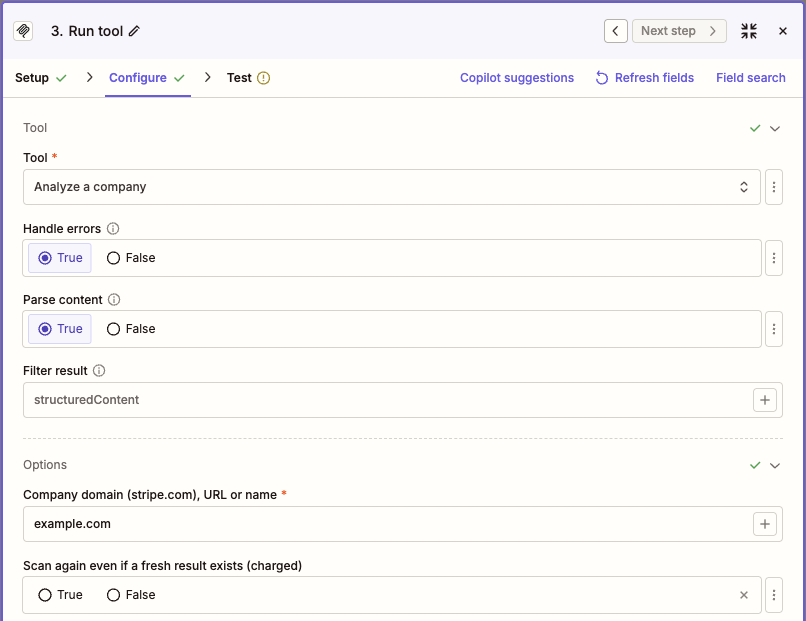
In the button's Zap, add Filter by Zapier and continue only when State is ready and Analysis ID is empty. Then add MCP Client → Run tool, choose your OAuth connection, and select Analyze a company (analyze_company).
Use Zapier's field picker to map Company domain from the button trigger into Company domain (stripe.com), URL or name (company). Leave Scan again even if a fresh result exists (charged) unselected; the corresponding refresh input defaults to false. Service domain stays in your table for the scoring step. The tool receives one scalar company value:
{
  "company": "COMPANY_DOMAIN_FROM_THE_TRIGGER"
}
The JSON shows the request shape. Enter the mapped domain in the tool's company field; do not paste the whole JSON object or the capitalized placeholder into that field. This recipe uses one text value, then selects the SaaS locally. In our MCP Client 4.0.2 tests, the array-valued Headcount filter for discovery reached the server as text even with a native-list mapping; this workflow does not depend on that array-input handling.
Add Zapier Tables → Update Record. Use the triggering record's ID, save the response's top-level id into Analysis ID, and set State to awaiting_result. Do this even if the response already says status: "done"; the collector can read an immediate result too. The usual initial response is status: "pending" with pollAfterSeconds: 60.
If the call times out or the record update fails, inspect the original run and recover its ID before starting another check. The button and empty-ID filter reduce accidental repeats; they do not create an exactly-once transaction across two services.
3. Build the result collector
Create the second Zap with these steps:
- Schedule by Zapier → Every Hour.
- Zapier Tables → Find Records. Find rows whose State is exactly
awaiting_result. Choose Return all results as line items for multiple matches. - Filter by Zapier. Continue only when a record was found.
- Looping by Zapier → Create Loop From Line Items. Map record ID, Company domain, Service domain and Analysis ID together.
- Delay by Zapier → Delay For. Wait one minute before reading the result; this also spaces the first read after the start.
- MCP Client → Run tool → get_analysis. Map the current loop's Analysis ID into
id. This tool takes only the ID.
Do not use a static Analysis ID or the editor's preview loop fields. The search normally returns only its first match unless you select the all-results option. Search-result options.
An hourly schedule is a tutorial choice, not a promise of completion within an hour. A large company analysis can take an hour or more. The first collector run could start just after the button click, so the one-minute Delay also covers the usual pollAfterSeconds: 60 hint; increase it if the response asks for longer. Keep pending analyses in the queue. Start with a handful of active records and add pacing before increasing volume: Looping iterations run in parallel, and one search is not an unlimited queue reader. Zapier Delay setup, Looping execution and limits.
4. Calculate a score only from an appropriate result
Add Code by Zapier → Run Javascript after the getter. Map three Input Data keys:
| Key | Value from the current run |
|---|---|
response | The getter's first Content Text value, containing the JSON response |
domain | Company domain from the loop |
service | Service domain from the loop |
Paste the accompanying qualification code. It verifies the company domain and selects the services entry whose domain equals your Service domain. It reads headcount from company.headcount and adoption from that selected entry's adoptionPercent.
The code handles these cases:
| Result | Queue outcome |
|---|---|
status is pending | Keep awaiting_result; ignore any previous results |
| Analysis failed or company identity differs | Set needs_review and preserve an explanation |
| Selected service is absent | Request review; do not claim non-use |
| Stale, partial or undated data | Request a freshness or coverage review |
| Selected service is present but headcount or adoption is missing | Mark the score Incomplete |
| Fresh completed analysis with all three inputs available | Apply the three-point rule |
Analysis returns a service list, not a separate true/false verdict for your chosen SaaS. A missing service can reflect coverage limits; this response also cannot tell you whether the selected service is untracked. Use a known canonical service domain and investigate missing findings. The code requires data younger than 30 days with stale: false and partial: false. It does not need a spend estimate for this scoring rule.
After the code, use Zapier Tables → Update Record. Map the loop's record ID, then map state, score, evidence and checked_at to the four output fields. The code always returns explicit text for Research score, so “Pending” and “Needs review” cannot silently retain an older numeric score.
The getter and result collection do not start another paid analysis. A pending record stays eligible for the following hour. Flag an unusually old queue item for human review rather than changing its meaning to “not using.”
5. Test the lifecycle before enabling automation
Start with one company you actually want to research. Capture the analysis ID once, then retest get_analysis with that same ID, respecting the returned polling interval, until a terminal response is available. Use that response to map the code and table fields.
A successful start proves that an analysis was accepted. It does not establish that your selected SaaS was found. Prepare synthetic responses for pending, matching-service, missing-service, incomplete-data, stale and failed cases to test the collector. Change the company domain in a sample to verify that it goes to review. Synthetic cases test the rule, not the live service.
Enable both Zaps only after verifying the table update. Clicking the button should save an ID; subsequent collection should update that same row. Importing another lead should not start paid work until its button is clicked. Action tests run the action live.
Put the evidence beside the score
A useful CRM update carries the selected service, outcome, analysis data date, score explanation and review state. Top-level dataDate dates the analysis data; it is not a separate observation timestamp for the selected SaaS. Checked at in our table is when the collector read the response. Keep those dates distinct so reading an old result does not make it look newly observed.
If the rule helps your team, map the fields into a CRM update using its original lead or account ID. Preserve that ID in the qualification queue. Avoid creating a new CRM account merely because a repeat check returns a result.
The point of the score is to make a research decision explainable: “This account fits our size range and shows relevant service use.” A rep still needs to validate the company scope, the use case, the buyer and the reason to act. See the anVendor API and MCP documentation for the underlying methods and credit rules.
Deal pricing setup
Use domain analysis to prepare a better deal-pricing range in Zapier
Before a sales call, it helps to know which services an account uses and the approximate scale of the relevant subscription. anVendor can analyze a company domain and return service findings with estimated adoption and annual spend where available. Zapier can combine that context with the economics of your own offer.
An optimal deal price also depends on scope, value, delivery costs, alternatives and the buyer's constraints. A domain analysis cannot reveal willingness to pay. This workflow produces a reviewable pricing range for a conversation, with the assumptions visible beside the result.
We will build two Zaps: a button starts one company analysis, then an hourly collector selects a relevant service, calculates a range and updates the deal worksheet. The proposal stays in a review table; sending a quote is a separate commercial decision.
Decide what the comparison means
Choose one incumbent service that your offer could plausibly replace. A company's total detected SaaS spend is not a budget available to your product. If you sell a complementary tool, an incumbent's spend may be useful context, but it is not a direct replacement-price benchmark.
Use this explicitly fictional example to follow the arithmetic:
| Input | Example | Where it comes from |
|---|---|---|
| Relevant annual spend estimate | $12,000–$24,000 | Illustrative anVendor-shaped result |
| Your annual delivery cost | $3,600 | Your own fully scoped cost assumption |
| Target gross margin | 60% | Your commercial policy |
| Comparison discount | 20% below the estimate's low end | Your chosen scenario, not an anVendor recommendation |
The cost-based annual floor is $3,600 ÷ (1 − 0.60) = $9,000. The comparison anchor is $12,000 × (1 − 0.20) = $9,600. That gives a $9,000–$9,600 annual discussion range under these assumptions.
Gross margin is not markup: adding 60% to delivery cost would answer a different question. The comparison anchor is not a verified customer budget. Check that both offers cover comparable users, functionality and service levels, and include onboarding or migration fees when comparing first-year totals.
Connect anVendor through OAuth
In Zapier App connections, click Create connection and choose MCP Client by Zapier. Use https://api.anvendor.com/mcp, Streamable HTTP, and OAuth = Yes. Leave Bearer Token empty. Click Connect, sign in and allow Analyze companies with a credit budget for your tests. OAuth connection fields in Zapier.
Test get_balance once. In all Run tool steps, enable Handle errors and Parse content, with Filter result empty. Reuse the OAuth connection for the analysis and its status checks.
A company analysis costs 1 credit, refunded when it fails or finds no subscriptions. An already owned fresh result is available without another charge. refresh: true requests a new paid scan. A connector budget is a spending limit against the account balance. anVendor method and billing reference.
1. Create the deal-research table
Create a Zapier Table called Deal pricing research:
| Field | Type and purpose |
|---|---|
| Company domain | Text; the account to analyze |
| Relevant service | Text; the exact service domain to compare |
| Annual delivery cost | Number; your annual cost assumption in USD |
| Target margin percent | Number; for example 60 |
| Comparison discount percent | Number; for example 20 |
| State | Text; initially ready |
| Analysis ID | Text; initially empty |
| Pricing discussion | Text; initially Not prepared |
| Assumptions and evidence | Long text |
| Checked at | Text, for an ISO timestamp |
| Analyze company | Button |
If this will later update a CRM deal, store its existing deal ID in another field. Keep the company domain and relevant-service choice unchanged while the analysis is in flight. A different company is a new request, not an edit to the identity of a running job.
Configure the button as a Zap trigger and enable Disable button when clicked. Add a filter to its Zap requiring State ready and an empty Analysis ID. This keeps initial analyses deliberate and separates importing deals from spending credits. Zapier Tables button setup.
2. Start one analysis
After the button trigger and filter, add MCP Client → Run tool → Analyze a company (analyze_company). Map Company domain into Company domain (stripe.com), URL or name (company). Leave Scan again even if a fresh result exists (charged) unselected; refresh defaults to false:
{
  "company": "COMPANY_DOMAIN_FROM_THE_TRIGGER"
}
Insert the domain with Zapier's field picker; the capitalized placeholder is not a literal argument.
Add Zapier Tables → Update Record. Map the triggering record ID, save the response's top-level id into Analysis ID and set State to awaiting_result. This also works when the analysis returns done immediately: the collector can read the result on its next run.
The usual initial response has status: "pending" and pollAfterSeconds: 60. A full company scan can take an hour or more for a large company. An accepted analysis is not yet a completed pricing input.
3. Collect results without losing slow analyses
Build the second Zap:
- Schedule by Zapier → Every Hour.
- Zapier Tables → Find Records, matching State exactly to
awaiting_result. Select the option to return all matches as line items. - Filter by Zapier, continuing only if records were found.
- Looping by Zapier → Create Loop From Line Items, carrying the record ID, Analysis ID, Company domain and all three commercial assumptions together with Relevant service.
- Delay by Zapier → Delay For, set to one minute, so even the first read waits after the start.
- MCP Client → Run tool → get_analysis, using the current loop's Analysis ID.
The getter takes only the ID:
{
  "id": "ANALYSIS_ID_FROM_THE_CURRENT_LOOP"
}
Use the actual saved ID, not a static editor sample. Each scheduled run checks the same pending request. It does not start a new analysis. The collector could first run shortly after the button click; the one-minute Delay covers the usual pollAfterSeconds: 60 hint. Increase it if the start response asks for longer. The hourly repeat cadence is our workflow choice, not a promise that a scan finishes in one hour. Scheduling Zaps, Delay setup.
Start with a small active queue. Looping is parallel, and search/loop limits must be considered before expanding it. A single fixed Delay followed by a “done” filter would drop a still-pending result from that run; the saved queue is what makes a later check possible.
4. Select the relevant service and calculate the scenario
Add Code by Zapier → Run Javascript. Configure these Input Data mappings:
| Key | Mapping |
|---|---|
response | The getter's first Content Text value, containing the JSON object |
domain | Company domain from the loop |
service | Relevant service from the loop |
annual_cost | Annual delivery cost |
margin_percent | Target margin percent |
discount_percent | Comparison discount percent |
Paste the accompanying pricing-range code. It waits for status: "done", checks the returned company domain, and selects the services entry whose domain equals Relevant service. It uses that entry's estimatedAnnualSpend.lowUsd; it does not total unrelated services.
The snippet calculates the cost floor and comparison anchor from the table inputs. It returns explicit state, pricing, evidence and checked_at fields. Follow it with Zapier Tables → Update Record, using the loop's record ID and mapping those four outputs to State, Pricing discussion, Assumptions and evidence, and Checked at.
The source analysis also includes dataDate, stale and partial. Retain the observation date in the explanation. Checked at means when the collector read the response; it must not make old data appear newly observed.
Send uncertainty to review
The code deliberately produces a review message for these cases:
| Condition | Why a price should not be filled automatically |
|---|---|
| No relevant service in the result | The comparison lacks evidence; absence is not proof of non-use |
| No spend estimate | An unavailable estimate is not zero spend |
openEnded: true | The upper figure is not a ceiling |
| Stale or partial analysis | Age or incomplete coverage needs examination |
| Missing or invalid cost/margin inputs | Seller economics cannot be inferred from the prospect's domain |
| Cost floor exceeds the chosen anchor | The proposed scope and discount do not meet the margin target |
| Analysis failed or company identity differs | The requested research has not produced a usable result |
pending stays awaiting_result for the next collector run. A failed task becomes needs_review; it does not silently start a new paid scan.
The API does not return an invoice, contract terms, a renewal date or a verified available budget. Its MCP response also does not expose plan-level pricing-source URLs. If you need those facts to justify a proposal, collect them through your normal discovery and pricing review.
5. Test with an account you intend to research
Click Analyze company once, save its ID, and retest only get_analysis while waiting. Map the final result after a real completed response is available. Check that the collector updates the original deal row and that its service domain matches the chosen comparison.
Use the fictional $12,000–$24,000 example separately to verify the arithmetic: $3,600 cost, 60% margin and 20% comparison discount must produce $9,000–$9,600 per year. That test validates the calculation, not a real prospect's spending. Also test a missing estimate and a cost floor above the anchor; both should route to review.
Inspect your anVendor Billing history after a real analysis. A charge through OAuth is attributed to the connected app. Enable the Zaps after reviewing the mappings and the intended budget; testing a start action can already spend credits.
Use the range to prepare the conversation
The worksheet should make the reasoning visible: which incumbent, what estimated spend, what observation date, what delivery scope and what commercial assumptions. A seller can then ask about actual usage, replacement costs, required service levels and the value of the proposed change.
Once those facts are clearer, revise the range and prepare the quote. Zapier has handled the research handoff; your team still owns the pricing decision.