
Find companies using your competitor with anVendor and Zapier
Get a competitor account list or combine anVendor findings with email enrichment and your sales pipeline. Follow a Zapier example with OAuth sign-in.
You sell an alternative to Slack. Which companies belong on your prospect list?
Companies already using Slack are a useful starting point: they have a reason to use a product in your category. anVendor helps you get a list of those companies. Use the list for account research, or add contact and email enrichment with Hunter, Apollo or your favorite sales tool and feed the results into your sales pipeline.
This guide uses Slack and Google Sheets as one simple example. Choose a competitor that anVendor tracks in your market, and adapt the destination to the tools your team already uses.
The workflow: every morning, find recent competitor-use findings and update your prospect spreadsheet.
A Zap is an automated workflow in Zapier. This one checks the first batch of results each day. It gives you a starting list for research; using a competitor does not tell you whether a company wants to switch.
1. Choose your competitor and spreadsheet
You need an anVendor account, a Zapier account that supports multi-step Zaps, and a Google Sheet.
Name the sheet Competitor accounts. Your team should be able to see each company's name, website, competitor and the date the service was last detected.
The step-by-step setup guide includes the full column list, Zap settings and a script you can paste into Zapier. Share it with the colleague who manages your automations, or follow it yourself.
2. Connect anVendor by signing in
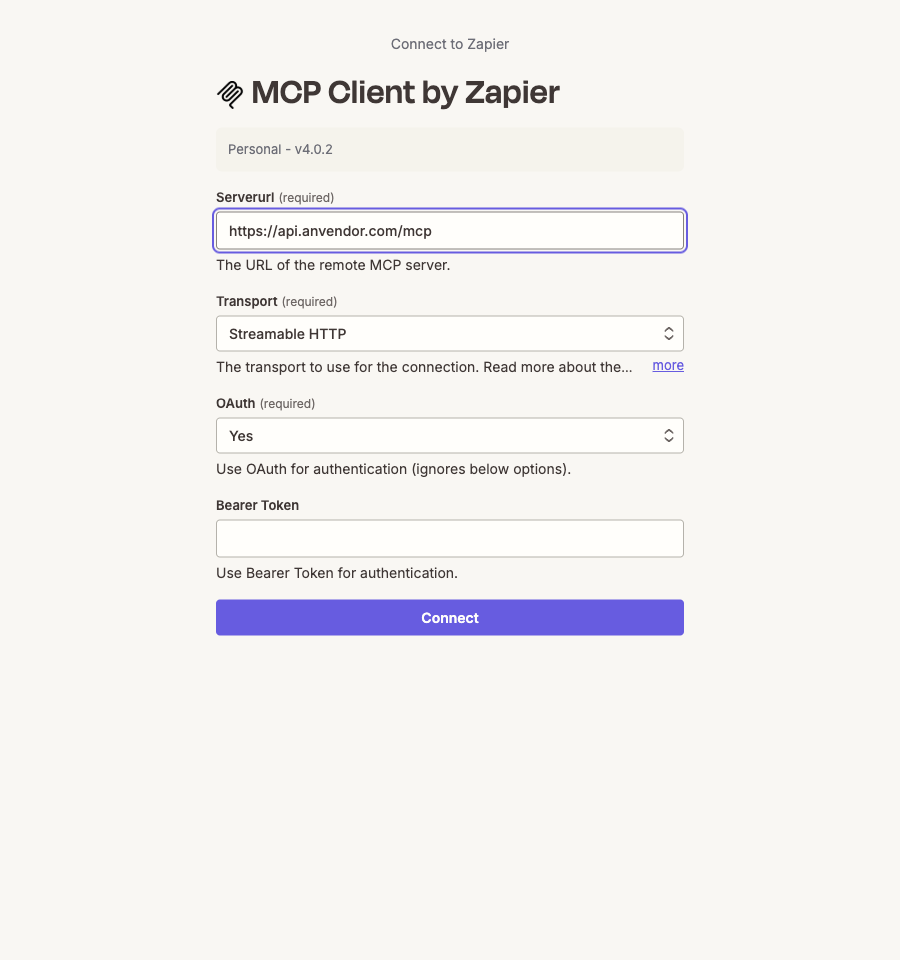
In Zapier, open App connections → Create connection and search for MCP Client by Zapier. This is the connector that lets Zapier work with anVendor.
Enter these settings:
| Setting | What to enter |
|---|---|
| Server URL | https://api.anvendor.com/mcp |
| Transport | Streamable HTTP |
| OAuth | Yes |
| Bearer Token | Leave empty |
Click Connect, sign in to anVendor and allow Search leads. OAuth means you authorize the connection through sign-in; you do not copy a secret token. You can reuse this connection in later Zaps. Zapier's connection instructions.
For a quick connection check, add an MCP Client → Run tool action, choose Credit balance, and click Test. A successful response confirms that Zapier can reach your anVendor account.
Company discovery does not spend anVendor credits. Zapier has its own task and plan limits.
3. Build the daily list
Create a Zap with Schedule by Zapier → Every Day and choose a time before your prospecting session.
Add MCP Client → Run tool, select your anVendor connection and choose Search leads. Enter your competitor's website, such as slack.com, in Service. Leave the optional filters empty for this starter workflow.
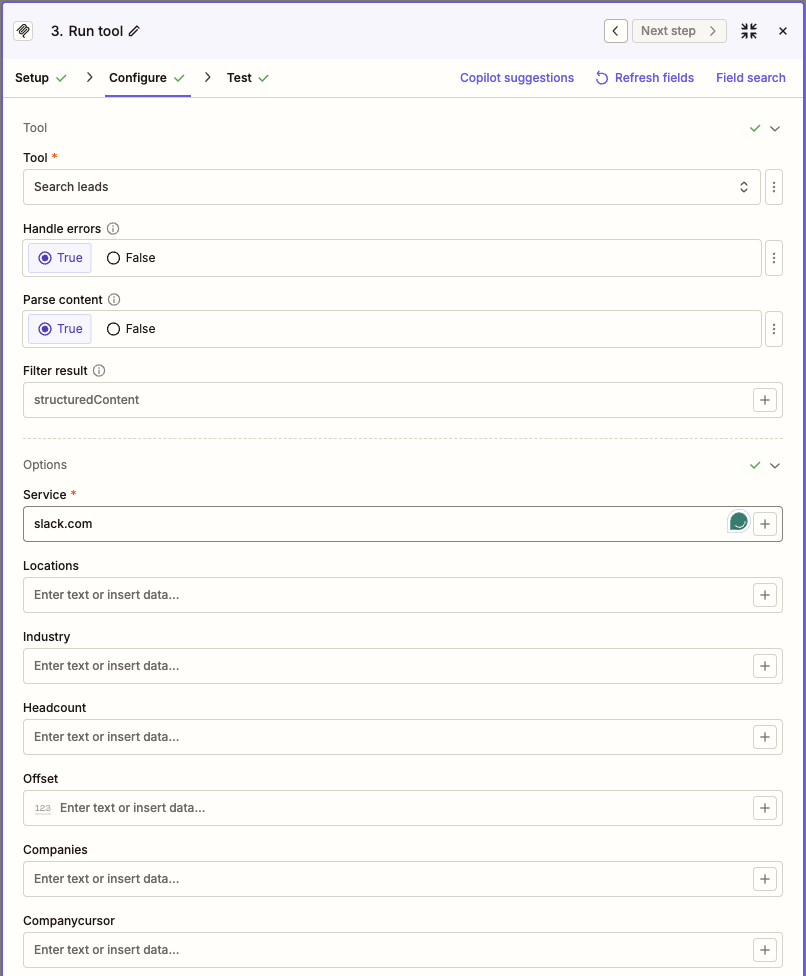
The remaining steps in the setup guide select recent findings, process each company and update the matching spreadsheet row. The supplied script handles the selection; you do not need to write it yourself.
Use the guide's lookup-and-update steps so a repeat run updates the same company-and-competitor entry.
4. Keep the list useful
anVendor discovery can return recent findings, older findings and companies that still need checking. This workflow keeps findings from the last 30 days and leaves out those followed by a newer check that did not find the service.
Keep the date beside every company. Some detailed figures may remain locked until you buy the relevant company analysis or reveal.
The first batch may be enough for an initial prospecting session. For a larger list, the setup guide explains how to collect more batches. A company missing from your sheet is not proof that it does not use the competitor.
5. Test one row, then start prospecting
Run a test and check one company in your sheet. Confirm the website, competitor and observation date. Then enable the daily Zap and review its first scheduled run.
Before reaching out, add the part automation cannot decide for you: why your offer could be relevant to that account.
For a Slack alternative, that might be a specific workflow or service requirement your product serves well. A useful discovery question is: “What works well in your team's current collaboration setup, and what would you change?”
Start with ten accounts, add a reason to contact each one, and use the findings to prepare the conversation. If you need help deciding which accounts to research first, follow the lead-scoring article.
Use the list in your own sales pipeline
You can stop at the company list or make it the first step in a larger workflow:
- Build an account list: anVendor → Google Sheets → your team's account review.
- Prepare outreach: anVendor → contact search and email enrichment → your CRM or outreach tool.
- Prioritize before enriching: anVendor → your lead-scoring rules → email enrichment for the accounts you choose to pursue.
anVendor supplies the company names, domains and competitor-use findings. Use those domains to find the right people in Hunter, Apollo or your preferred sales tool, then enrich the selected contacts with work emails where available. Keep the competitor and observation date alongside each contact so the rep knows why the account was selected.
These are combinations you can build around the example. The enrichment step needs its own provider connection and setup; the exact actions depend on the tool you choose.
Suggest a correction · Sources and estimate limitations
Leads already using your competitor
Discover companies using SaaS and business services, with estimated adoption and annual spend to help qualify each opportunity. Free to start.
Get started free